 ) on the Log Editor by importing
 Merge an upper run with a lower run using the Merge Log Runs tool () on the Log Editor by importing
a log in either LAS or GeoSyn format. You can also use the Math tool or the Composite Log tool to merge runs; however, the Merge Log Runs tool is the simplest and quickest method.
).The Import Log Data dialog box opens.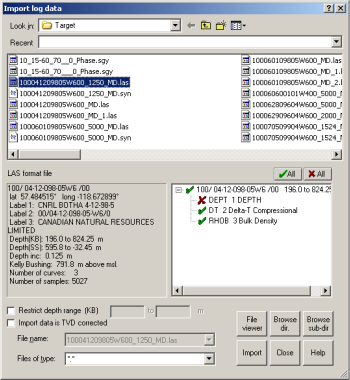
The Merge Log Runs dialog box opens.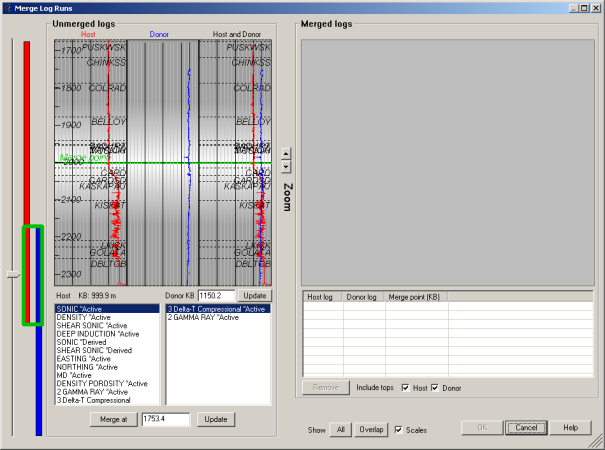
The display in the Unmerged Logs display pane updates to reflect the relationship of the two selected logs.
To set the area of interest, to the left of the Show label at the bottom of the Merge Log Runs dialog box, specify whether to show the entire depth of both log runs in the Unmerged Logs display pane, or just the depth where they overlap.
To clarify the display, enable or disable the Scales check box to specify whether horizontal and vertical scale lines appear in the Unmerged Logs display pane. Click the Zoom buttons to the right of the Unmerged logs display pane to change the zoom resolution.
To set the specific point at which to merge the logs, either drag the slider to the left of the Unmerged Logs pane (or drag the display pane), or type a specific depth in the box to the right of the Merge at button below the Unmerged Logs display pane and then click Update.
Specify whether to include tops from either (or both) the host or donor well.
The spliced log appears in the Merged Logs pane in the right portion of the Merge Log Runs dialog box with merge details in the table below the Merged Logs display pane.